Looking for help? Contact our Help & Support Team
  • Home
  •   »  
  • Core zoho expense reimbursement

CORE | TCWGlobal

Zoho Expense Reimbursement

With Zoho, submitting expenses to TCWGlobal for reimbursement is simple, with the option to submit online or through the Zoho mobile app!


Submit an expense for reimbursement in 3 easy steps!

Jump to a section!

Group 167 copy-2

STEP 1: Log into Zoho

Group 326 copy

If you are creating an account for the first time: 


  • Follow the invite link in the email invitation from no-reply@zohoexpense.com 

  • Create your login (username is your email, create your own password) 

  • Zoho will send you an email to verify your account with a verification code 


Already have an account?


STEP 2: Create a new expense report and add all expenses

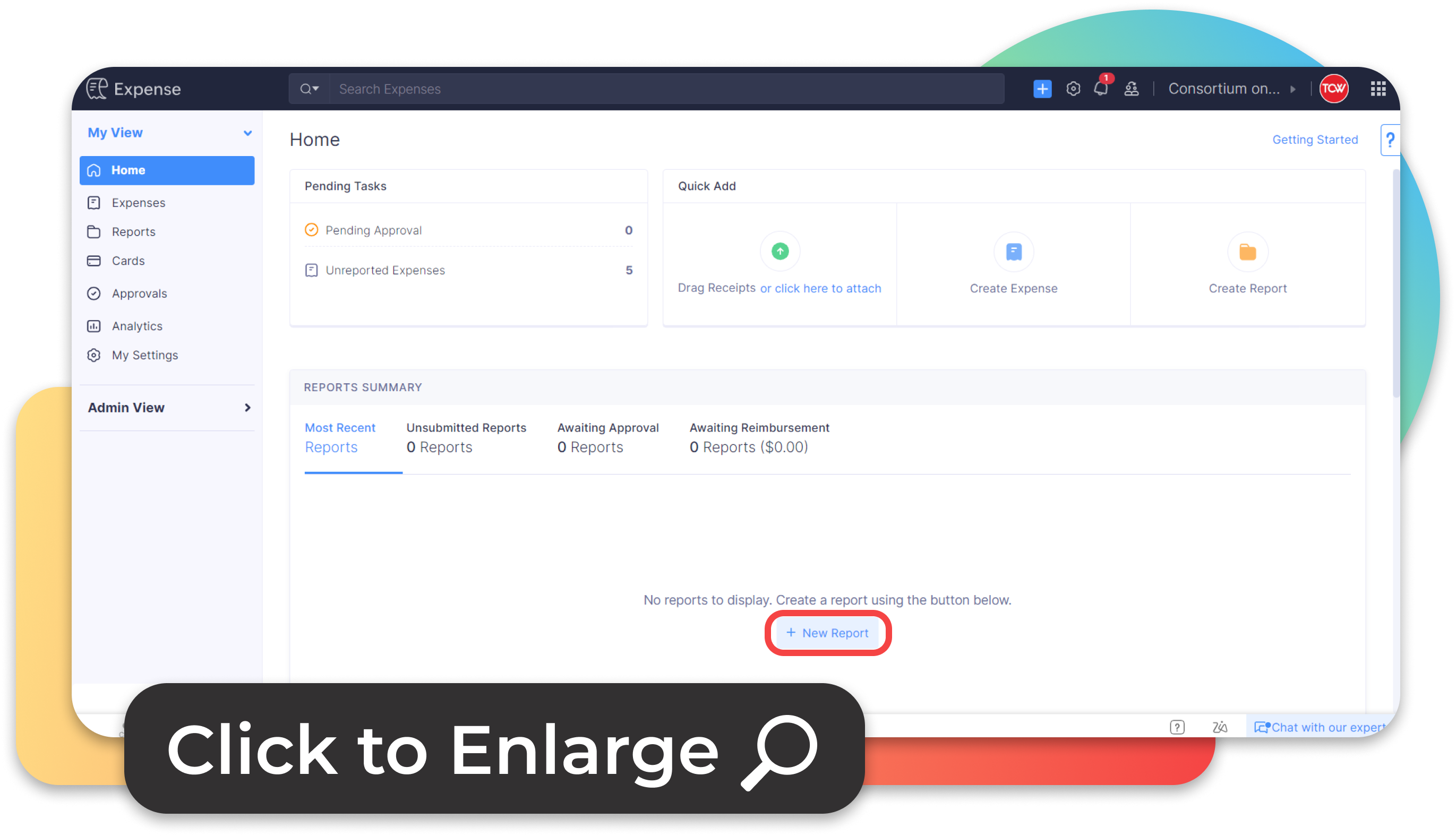
Select "Reports" from the left navigation bar and select + to create a new report

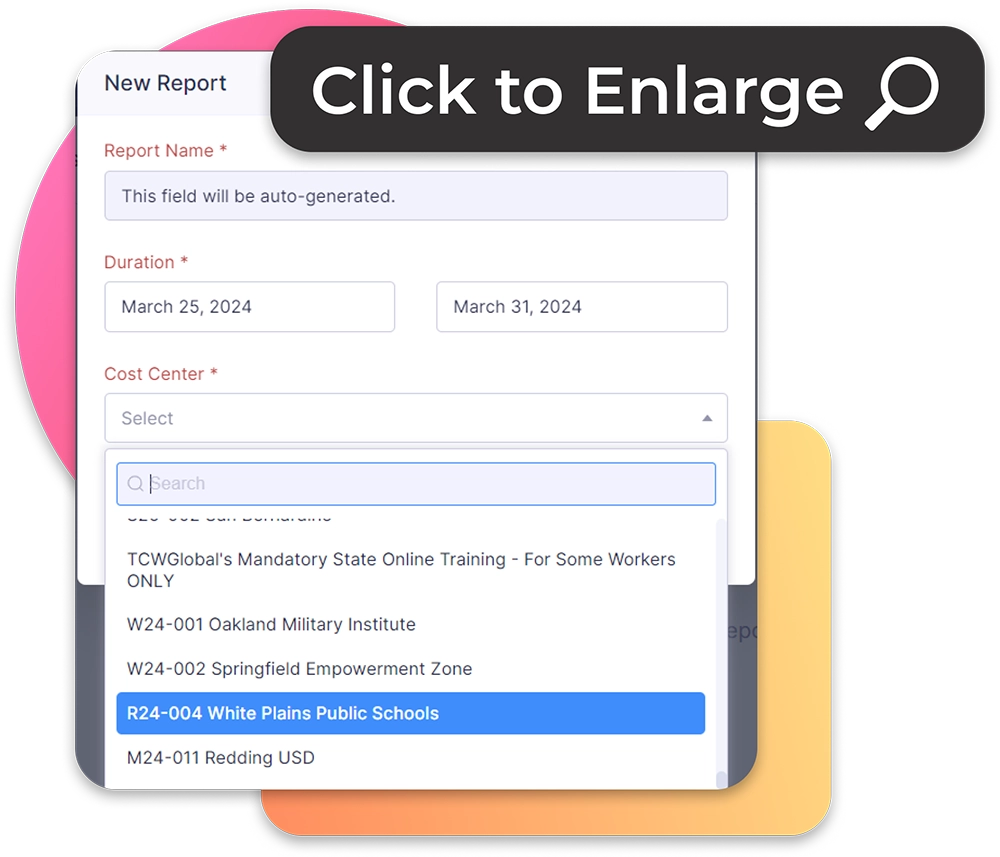
Report Name will automatically generate.

  • Enter Duration Dates

  • Select Cost Center and Click Save
If the Cost Center is not available from the drop down, please reach out to Brian Blanning (bblaning@corelearn.com) so the Cost Center can be added. 

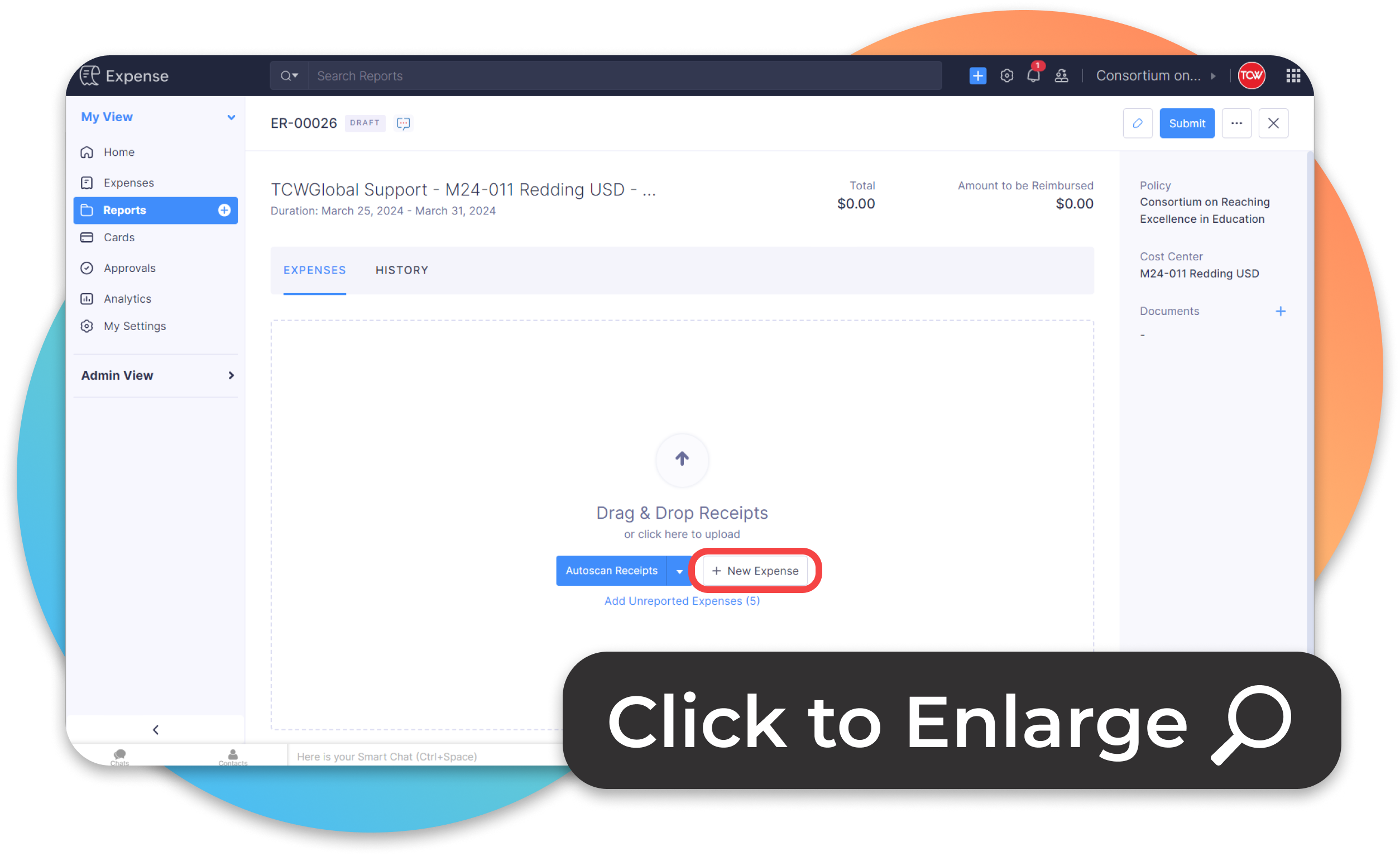
Click "+" New Expense button at the bottom of the report to enter expenses.

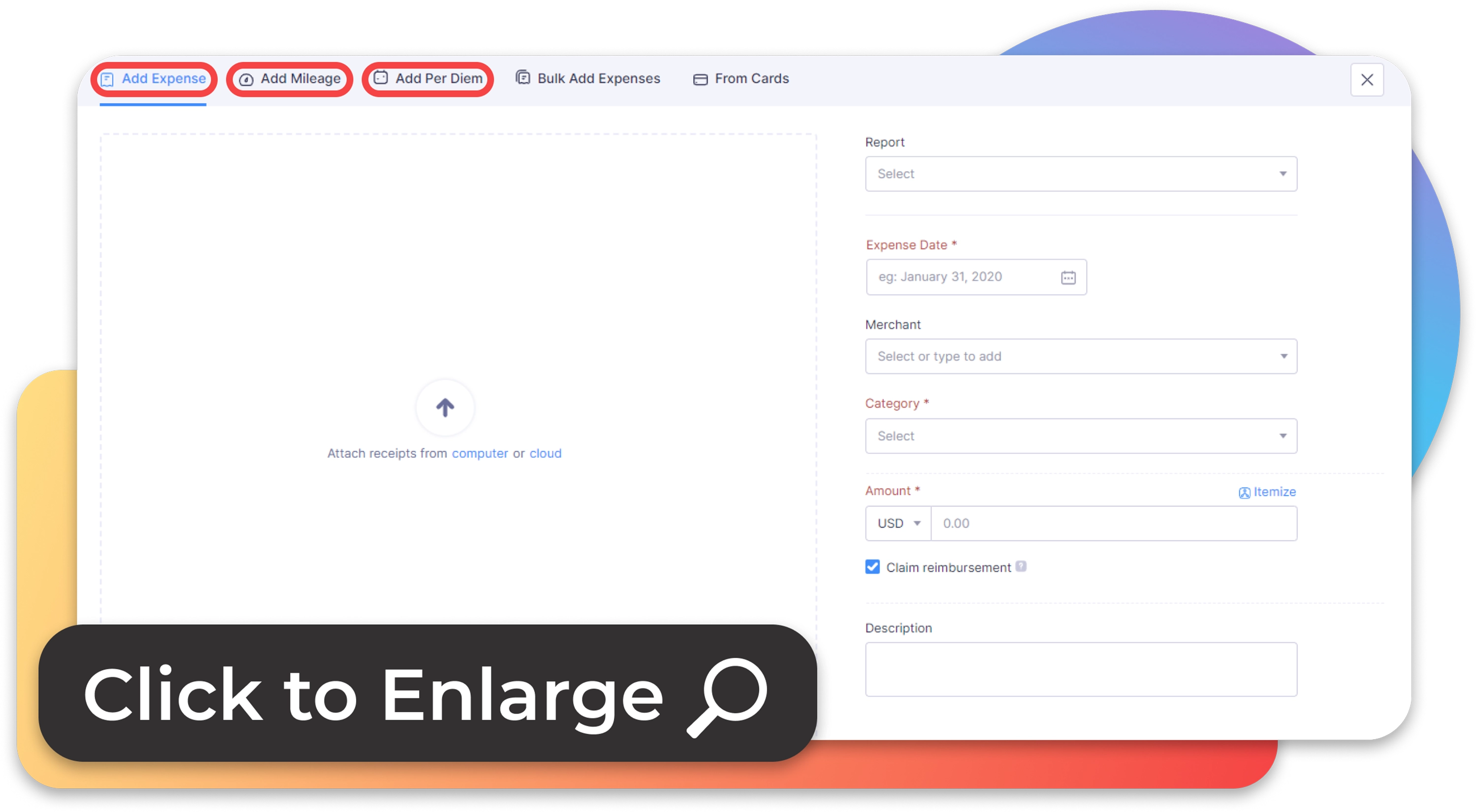
  • Create a separate expense for each item and include receipts. You can add expenses, mileage and per diem.

Add Expense, Add Mileage and Add Per Diem will be under separate tabs at the top of the page

  • All expenses, mileage and per diems must be created as separate line items in the report.

How to Add an Expense

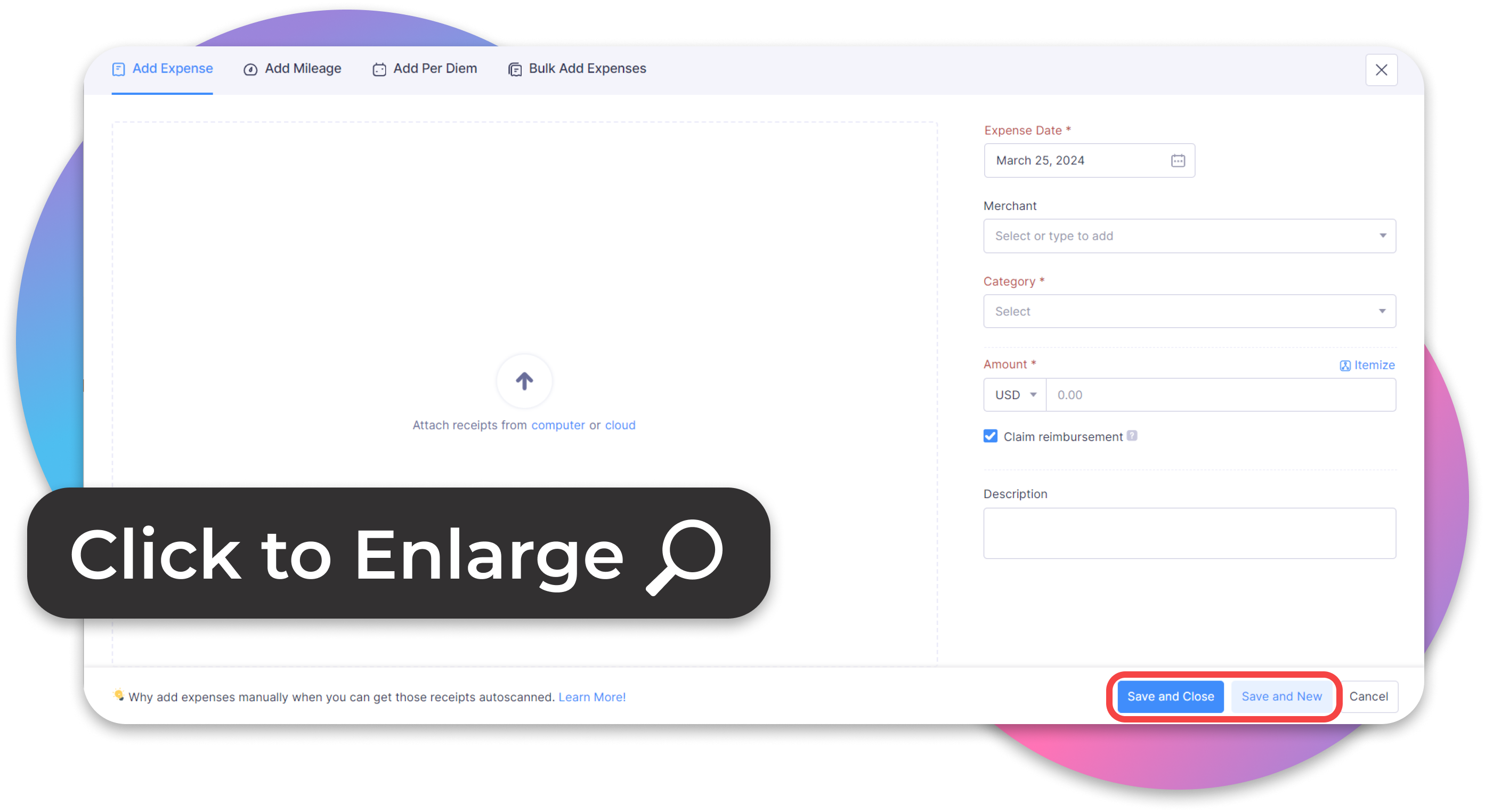
Complete all required fields and attach images of any receipts.

  • Enter Date expense occurred.

  • Select Category for the expense

  • Enter Amount

  • If you need to enter additional expense, click "Save and New.”

  • If you are done entering expenses, click “Save and Close.”

How to add Mileage

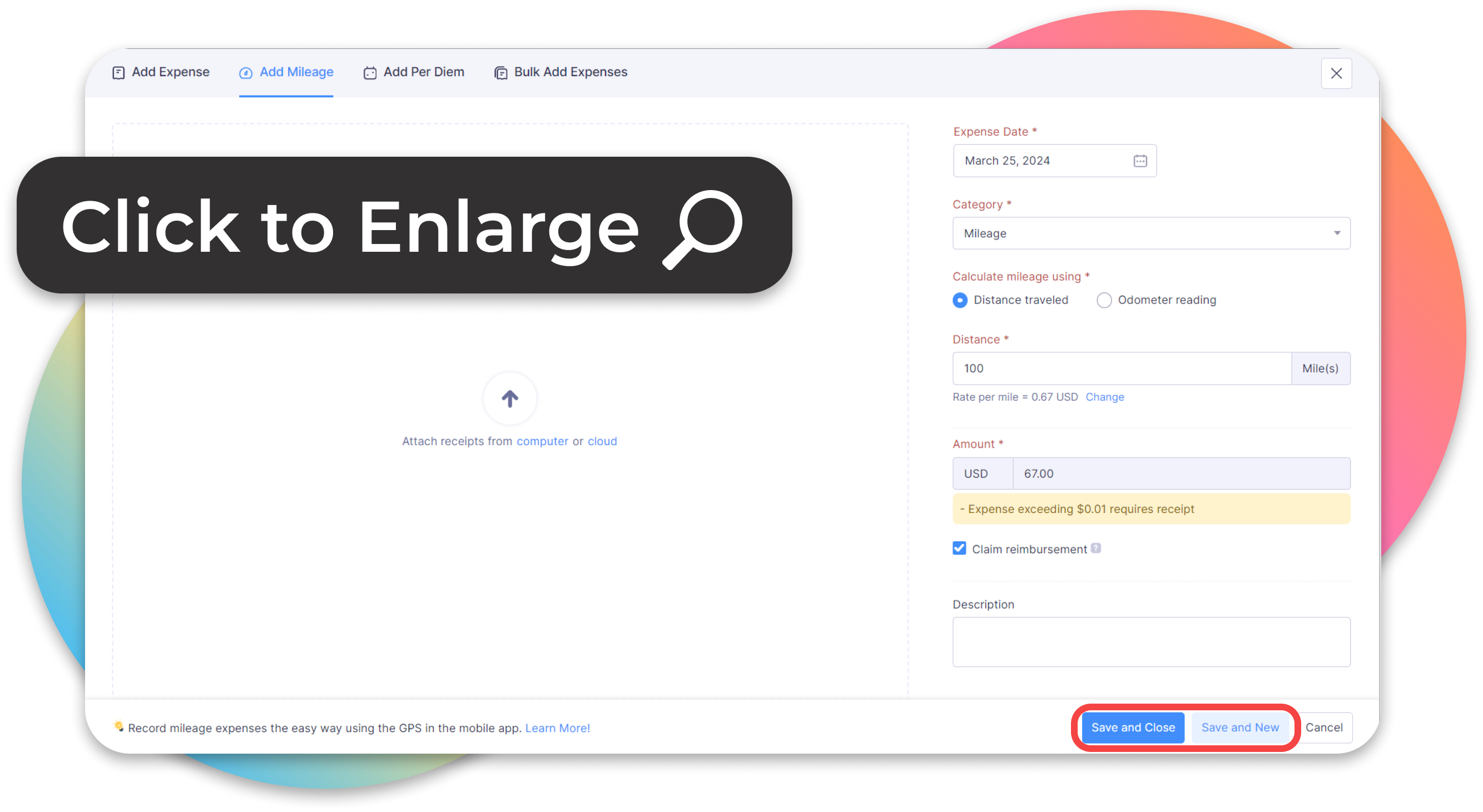
Complete all required fields. No receipts necessary for mileage.
You may optionally upload a map showing distance traveled

  • Enter Date when mileage occurred

  • Category defaulted to Mileage. Do not update field, leave as is
    • Note: Public transportation and rideshare services are claimed as expense

  • Enter Distance (in miles)
    • Amount will auto populate based on distance entered.

  • Upload Image of a Map

  • If you need to enter additional mileage, click “Save and New”.  

  • If you are done entering mileage, click “Save and Close”. 

How to add Per Diem

Complete all required fields and attach at least one receipt.
Per Diem is used for Meals.

  • Select “Default Rate” for Travel Location.

  • Enter Start/End Date(s) per diem occurred.

  • Deselect any dates or meals that are not applicable. Please select either a Full-Day Per Diem or a Half-Day Per Diem, not both.

  • Verify amounts selected, Click “Save and Close” and you will be redirected to the Expense homepage

At this stage, make sure all expenses, mileage and per diems have been added to the report.   
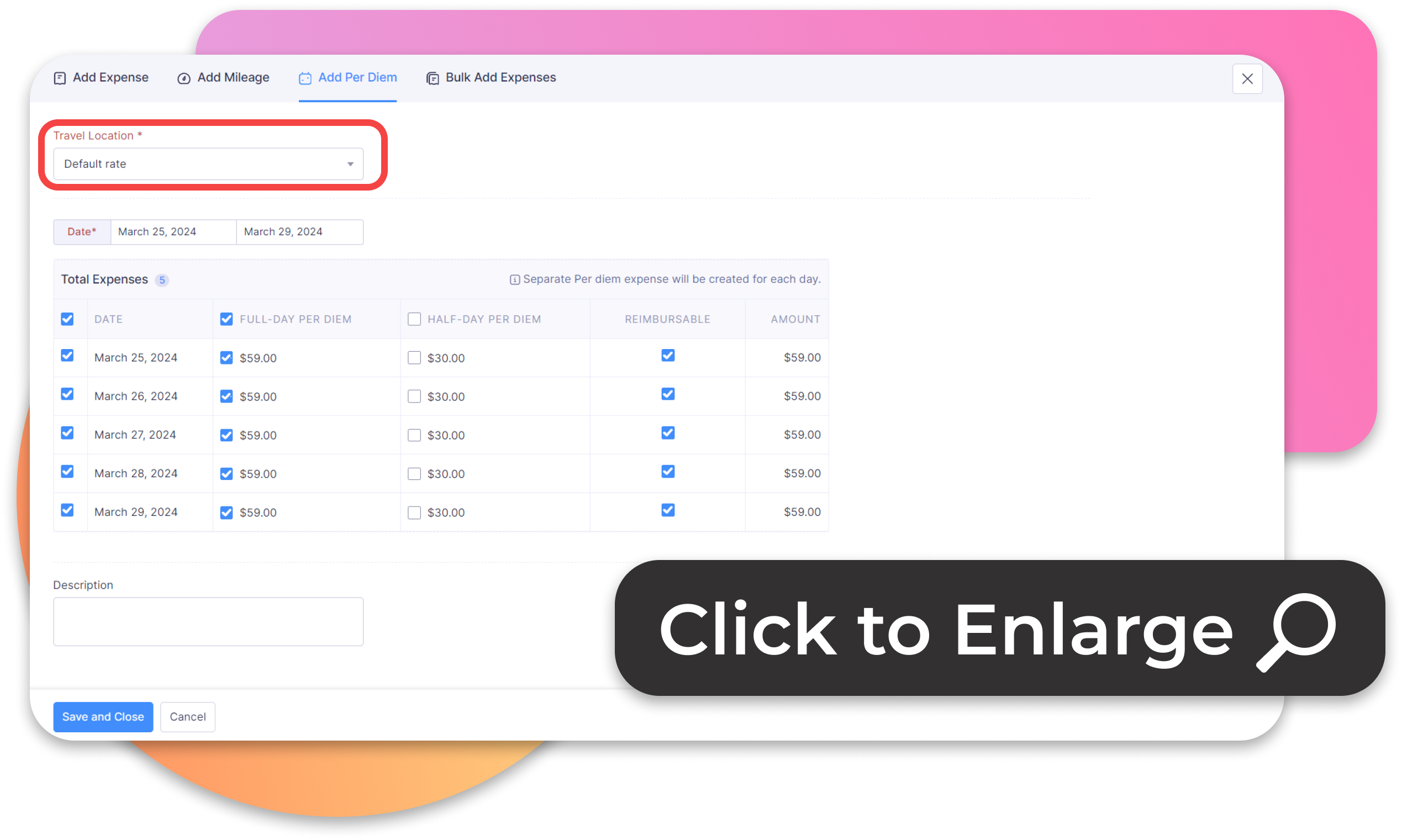
You may invoice us for a full per diem for every full day of your trip.

Partial Days

If you leave your house after noon on your departure day, or you arrive at home before noon on your return day, you get a half-day ($30) per diem for those days.

Commuting

For every trip under 12 hours, you can claim a half per diem. So, if you are commuting to a school from your house and returning that same day, you can claim a $30 per diem for that day, attaching one meal receipt. If your roundtrip is more than 12 hours, you get the full day per diem ($59). 

CORE Reimbursement

CORE reimburses meals on a per diem basis. We have a standard per diem of $59 per day. You must submit one receipt per day, but the receipt(s) do NOT have to add up to $59. For example, if you submit a receipt for $5, we will still reimburse you for $59 for that day. We need a minimum of one receipt submitted per day to receive per diem for compliance purposes.
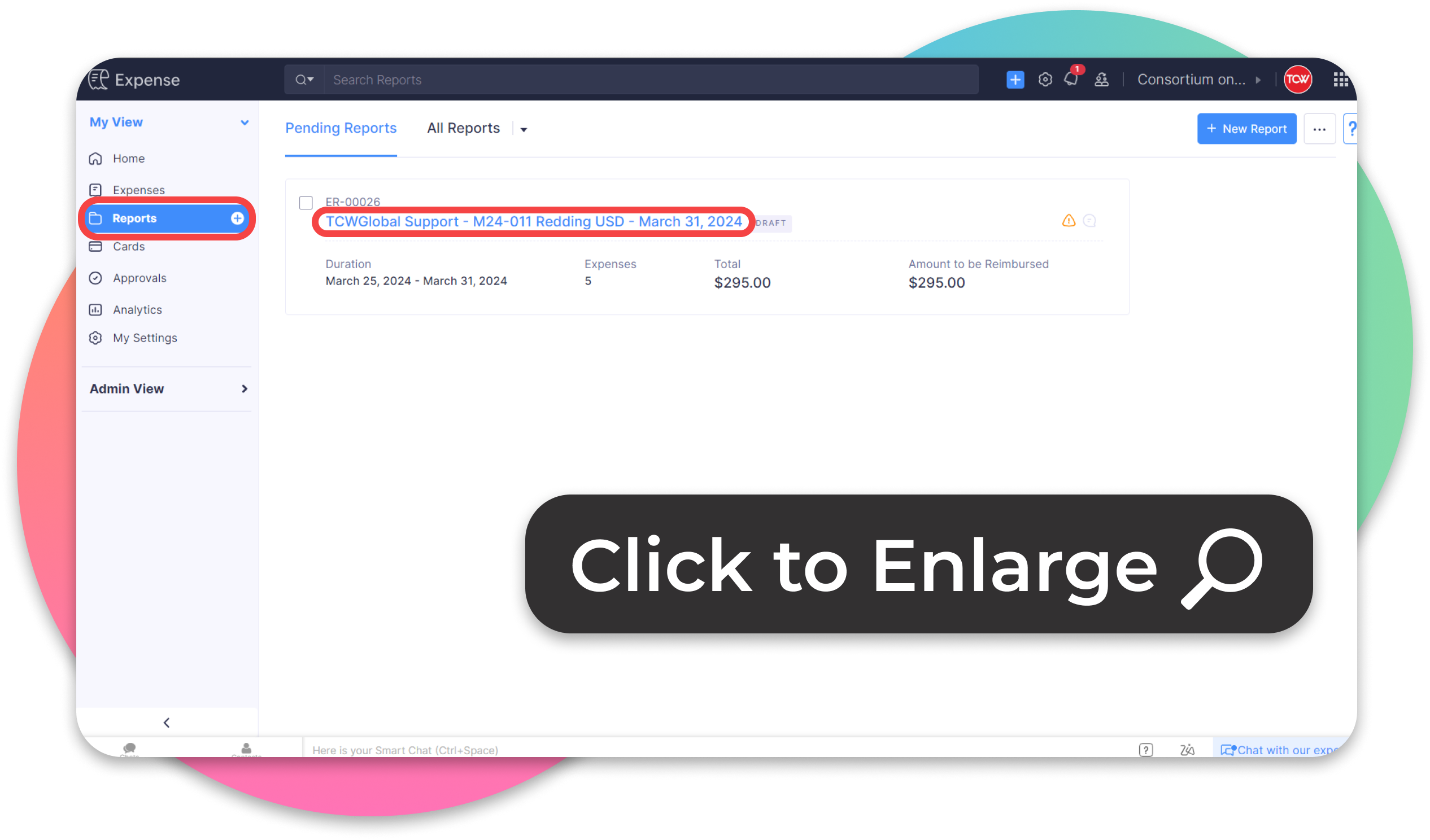
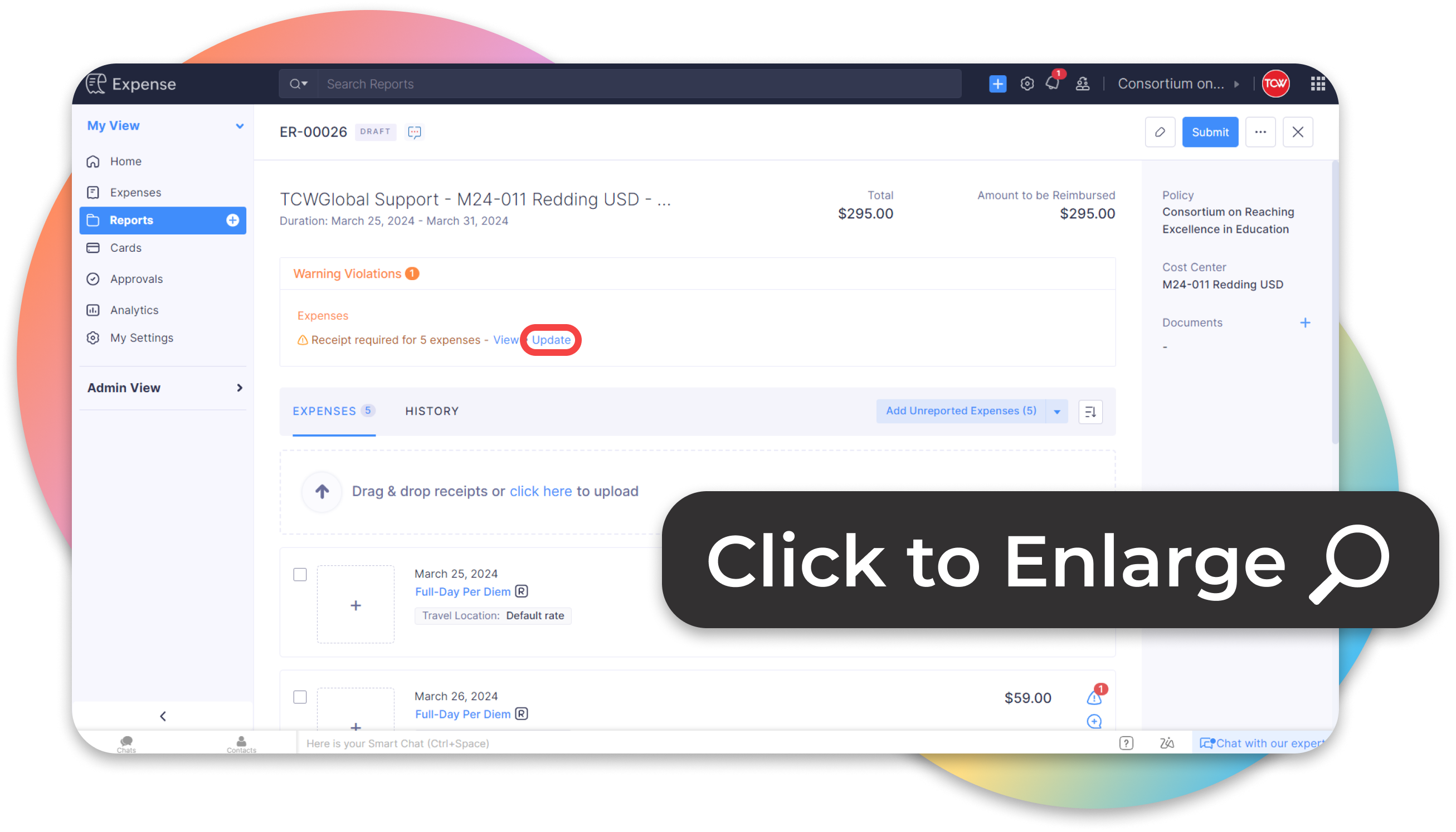
  • Click on the Reports page on the navigation bar on the left. *Do not click the plus button on the Reports tab!

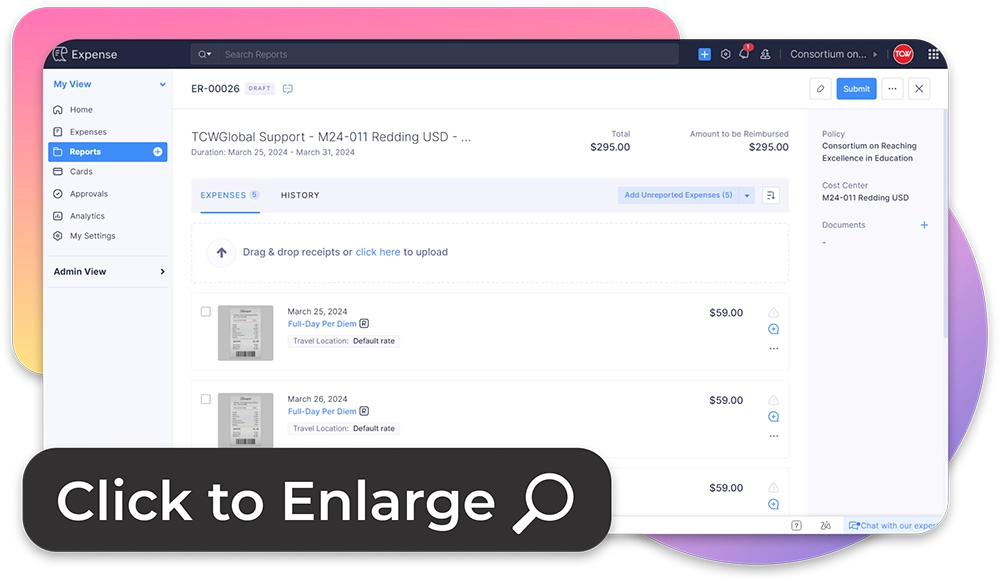
  • Under the Reports page, click the created report. The report will show warning violations for the required receipts. 
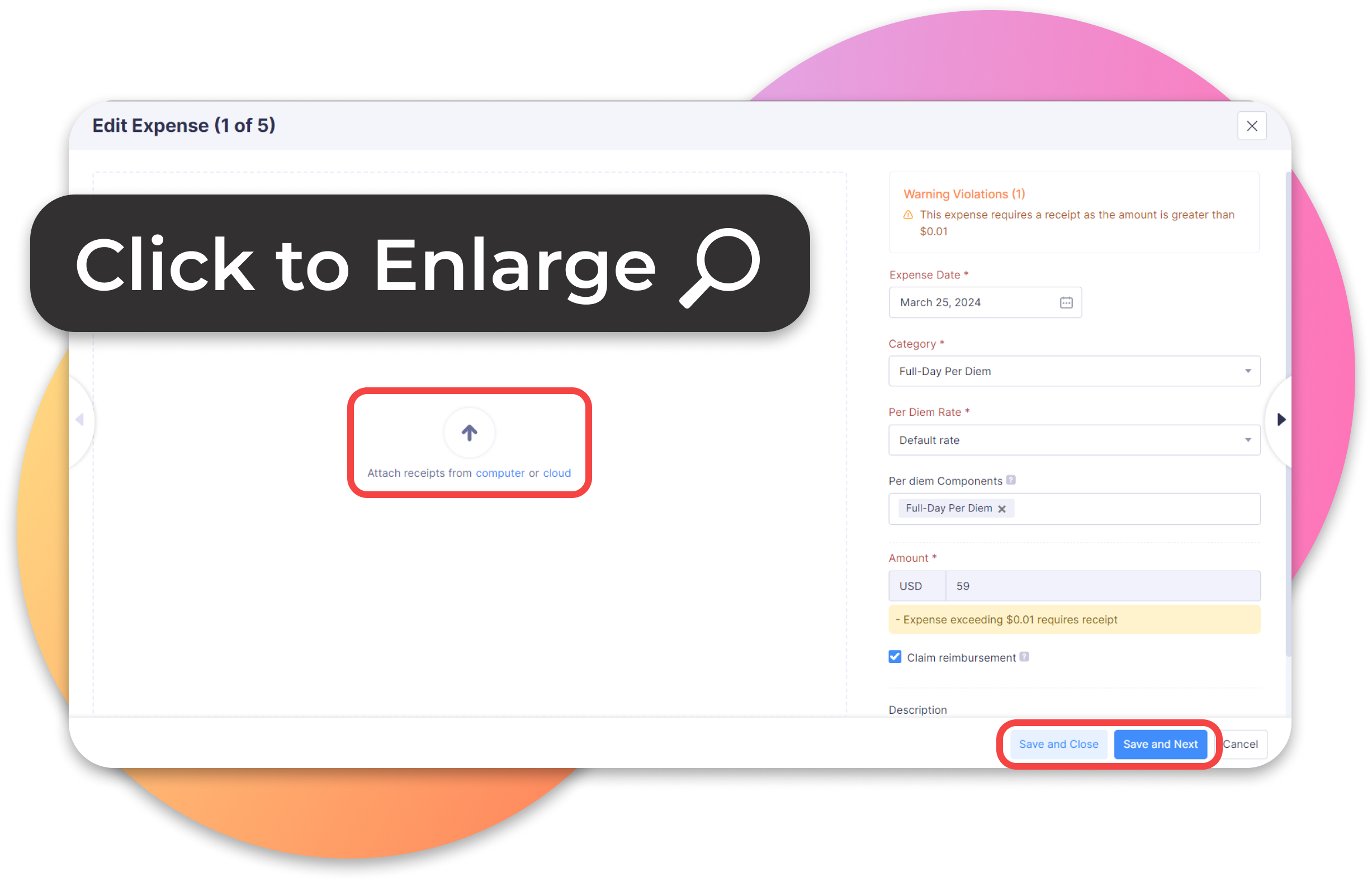
  • Under Warning Violations, click “Update” for the flagged expenses – these will be the per diems.  
  • It will take you to the per diem that requires the receipt upload. Click the upload box or drag and drop the file to upload the receipt for the per diem.  

  • ONLY one receipt required per diem. The same receipt image can be used for multiple per diem submissions on an expense report. 

  • Once uploaded, click “Save and Next” if applicable. Otherwise, click “Save and Close”. 

  • After “Save and Close”, you will be redirected to the open report. 


STEP 3: Submit for Approval

Under the open report, click Submit on the top righthand corner.


The report will be reviewed and approved by Brian Blanning (bblaning@corelearn.com)  and if you have notifications enabled, you’ll be notified once your expense is approved and processed for payment.

CORE Travel & Expense Reporting Guidelines

Zoho Expense Submitter's Manual iOS | Android

That's It!
Sit Back and Relax!

If you have any questions or need help with your expenses, please contact your Account Manager, email hello@tcwglobal.com, or call (858)-810-3000. Our team is happy to assist you! 

Please see TCWGlobal’s Worker Handbook for additional information about expenses.